
Confirming when deposit is secured
All Whale users can check if a deposit has been secured in Whale Admin by navigating to the “Deposits” page to find the renter’s lease and checking the current status. “Locked” means the deposit has been secured.
Additionally, Whale confirms when deposits have been secured for different PMS integrations as follows...
Yardi integrations:
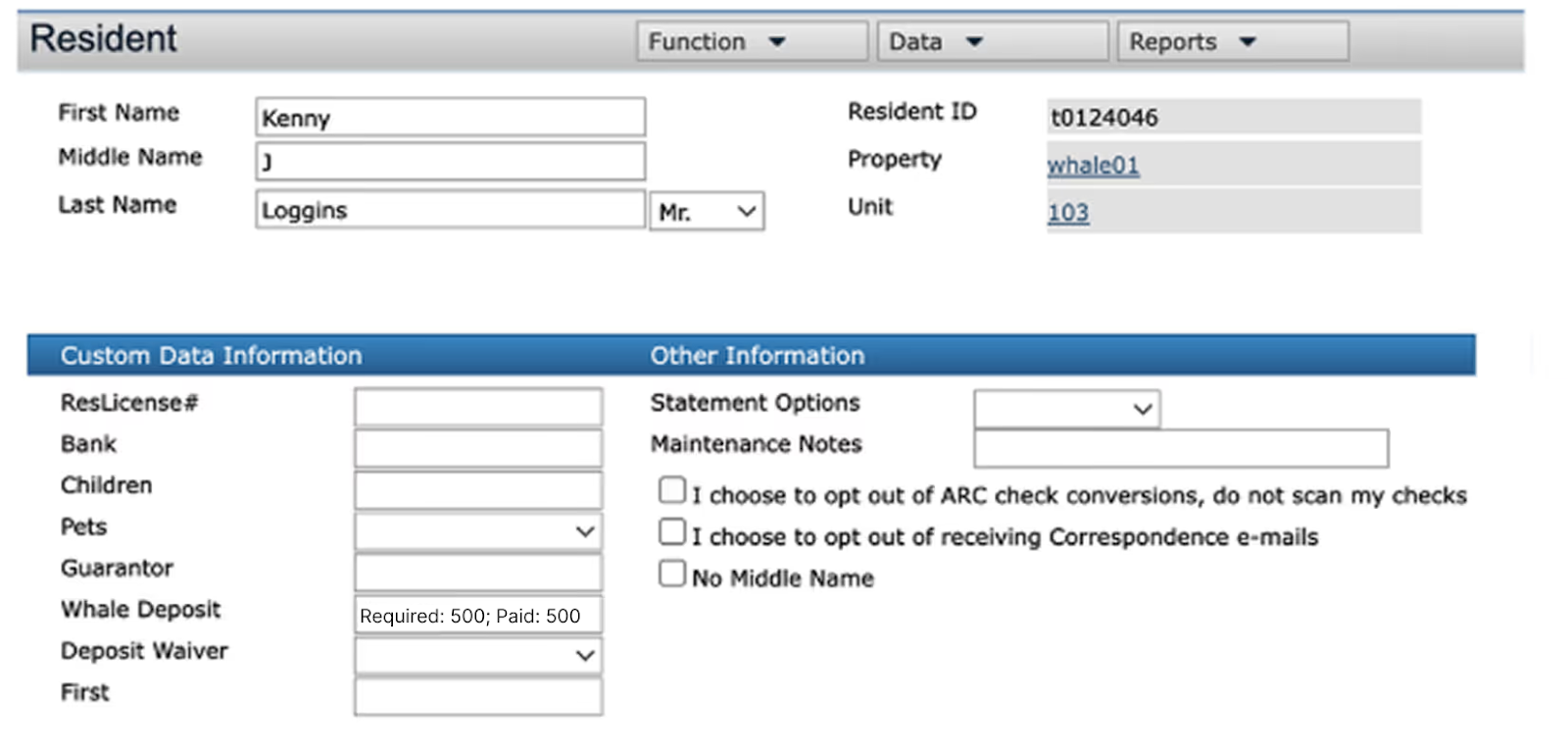
In Yardi, navigate to Resident >> Other Info >> Custom Data Information and check the “Whale Deposit” field to see the deposit amount currently secured by Whale for the lease. Whale will display the total amount required and the total amount paid as “Required: 500; Paid: 500”.
You can also check Document attachments. Navigate to the Documents tab to see if there’s a receipt for Whale called “Whale Deposit Receipt_YYYY-MM-DD”. If so, open the document to check to see if the full deposit amount has been paid.
Entrata integrations:
In Entrata, navigate to resident and select the “Financial” tab and check the 3rd Party Deposit Status. If it is “Active”, Whale has secured their deposit.
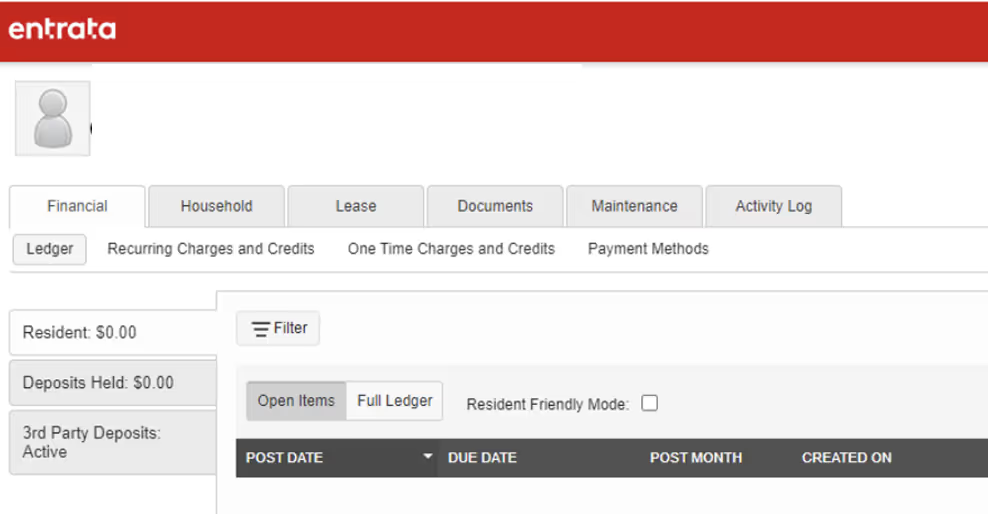
If the renter claims the deposit has been paid, but the status is not showing as Active, there are two other ways to check if the deposit has been secured.
- Navigate to the Documents tab to see if there’s a receipt for Whale called “Whale Deposit Receipt_YYYY-MM-DD”. If so, open the document to check to see if the full deposit amount has been paid.
- Navigate to the Activity Log tab to see if the most recent event from Whale shows the full deposit has been received.
All other integrations:
As soon as the deposit is secured, you will receive an email notification from notify@gowhale.com. You can also check the status of the deposit in Whale Admin.